
![PQ-Logo-Primary-Lockup-TM-1.png]](https://coachsupport.positiveintelligence.com/hs-fs/hubfs/Logos/PQ-Logo-Primary-Lockup-TM-1.png?height=50&name=PQ-Logo-Primary-Lockup-TM-1.png)
Client Feedback for Coaches
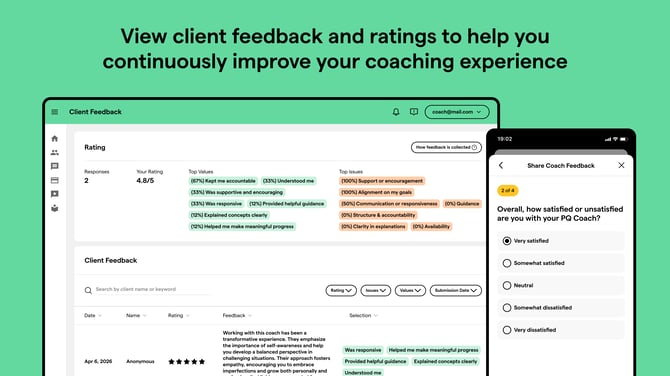
We’ve introduced a new way for your clients to share feedback with you—so you can better understand their experience and continue growing as a coach.
This article will walk you through:
- When clients are asked for feedback
- What questions they answer
- How to view feedback in your dashboard
- Notifications
- How anonymous feedback works
- How feedback is shared and used
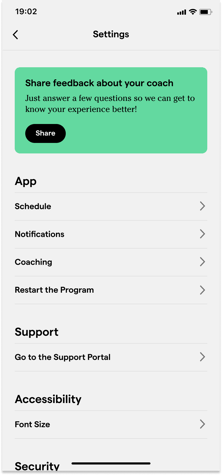 When Do Clients See the Survey?
Clients are asked to complete feedback at Week 4, Day 4 of the PQ Program. The survey appears automatically when they open the app if they don’t complete it:
- They can tap “Remind Me Later” and it will reappear in 3 days
- If they miss both, it will show again the next time they open the app
- Survey is always available in the settings tab
What Questions Are Asked?
The survey is short and personalized based on their experience.
-
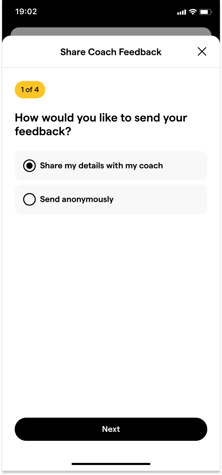
Anonymous opt in (Required) - "How would you like to send your feedback?"
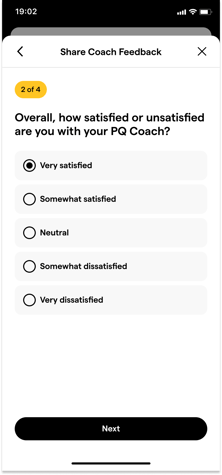
- Satisfaction Rating (Required) - "Overall, how satisfied or unsatisfied are you with your PQ Coach?"
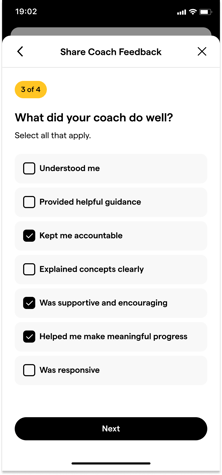
- Multi-select (Optional) - "What did your coach do well?" or "What could your coach improve on?"
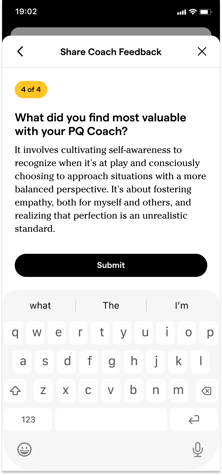
- Open ended question (Optional) - "What did you find most valuable with your PQ Coach?"
Where to View Feedback in Your Dashboard
Step 1: Go to the Client Feedback Page
 Located after your Bill page in the left navigation menu in Coach Dashboard
Step 2: View Your Feedback Overview
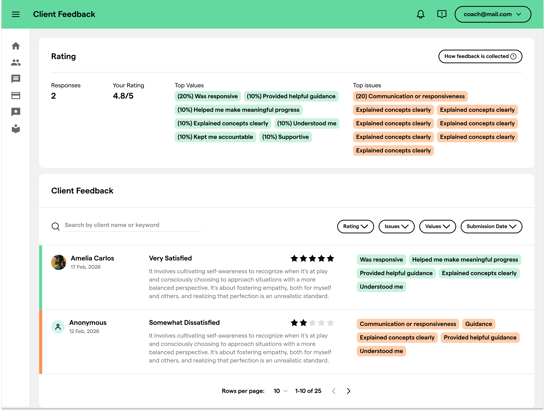
You’ll see a summary at the top:
Total Responses – number of clients who submitted feedback
Average Rating – Your overall score calculated by the total rating/total responses
Top Issues – Most common improvement areas
Top Values – What clients appreciate most
How are the top values and top issues calculated?
Each percentage is calculated based on how many clients answered the question, not how many total answers were selected. For example, if 10 clients answered the question and 6 selected “Accountable,” then “Accountable” would show as 60%.
Step 3: Explore Detailed Feedback
Below the summary is a table with all submissions:
Columns include:
- Submission Date
- Rating (stars and number)
- Feedback text
- Issues / Values selected
- Client Name (or “Anonymous”)
You can explore feedback using filters and keyword searches. You can also export the results to customize your own reporting.
Notifications
When a client submits feedback, you will recieve an email and Coach Dashboard notification.
Anonymous Feedback
Clients have the option to submit feedback anonymously.
If a client chooses to remain anonymous:
- You will still receive their rating, written feedback, and selected issues or values
- Their name and identifying information will not be shown
- The response will appear as “Anonymous” in your results
Survey Response Privacy
Feedback may be accessible to Positive Intelligence for internal review and program improvement purposes. However, Positive Intelligence will not take direct action based on individual survey responses or intervene in the coach-client relationship based on feedback.