
![PQ-Logo-Primary-Lockup-TM-1.png]](https://coachsupport.positiveintelligence.com/hs-fs/hubfs/Logos/PQ-Logo-Primary-Lockup-TM-1.png?height=50&name=PQ-Logo-Primary-Lockup-TM-1.png)
The Saboteur Assessment should be a simple first step in the Positive Intelligence journey. The process is designed to be easy, supportive, and actionable.
How clients can take the Saboteur Assessment
How clients receive their results
How to invite a lead to take the Saboteur Assessment
What happens when a coach invites a lead
How coaches can track invited leads
How clients sign in again later
How clients share their results
How clients can take the Saboteur Assessment
Potential clients can take the Saboteur Assessment in three ways:
Option 1: Through a coach invitation
Coaches can invite leads to take the Saboteur Assessment through the Coach Dashboard.
When a coach sends an invitation:
-
the lead receives an email invitation,
-
their name and email are pre-filled when they open the assessment,
-
and the lead appears in the coach’s Leads area for tracking.
This creates a more personalized experience and makes it easier for the coach to follow up after the assessment is complete.
- From the Leads tab in your Coach Dashboard, click Invite Lead.
- Enter the lead’s name and email address.
- Leads already enrolled in the PQ Program cannot be invited.
- Click Send Invitation.
- Your lead will instantly appear in your Leads table, with their status updating in real-time.
Option 2: Through the website
Clients can access the Saboteur Assessment through the website. If they have already completed the assessment, they can also use the login option on the website or assessment page to return and view their results.
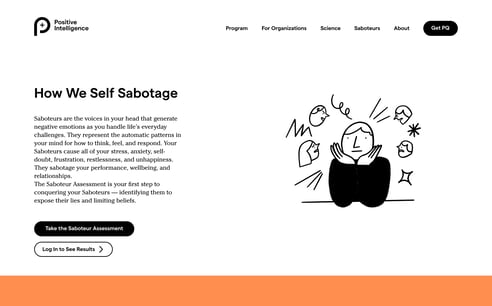
"Log In to See Results" button on the website
Option 3: Through the PQ app
Clients can also take the Saboteur Assessment directly in the PQ app.
When new users open the app, they’ll see the option to take the assessment. Returning users who have already completed it can sign in to access their results.
Entering the app, they will see a welcoming screen with two options:
- For new users: We recommend taking the Saboteur Assessment. When selected, the assessment opens directly in a modal within the app.
- For returning users: If they've already completed the Saboteur Assessment (which gives them at least "Guest" level access or they could full access), we recommend they sign in to access their results.
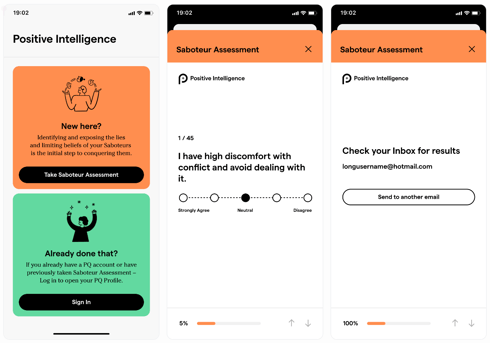
Saboteur Assessment in PQ app
How clients receive their Saboteur Assessment results
After completing the assessment, clients enter their name and email address.
Then:
-
They click Send Me Assessment Results.
-
An account is automatically created for them.
-
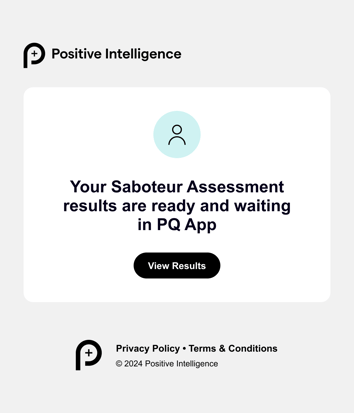
They receive an email with a link to view their results.
-
Selecting View Results opens the PQ app or web app, where they can review their Saboteur Assessment results.
Clients who complete the assessment receive limited Guest access in the PQ app. With Guest access, they can:
-
view their Saboteur Assessment results,
-
explore Saboteur profiles,
-
share their results with others,
-
see an introduction to Positive Intelligence,
-
and try basic 2-minute PQ Rep sessions.
These results are a starting point for deeper self-awareness and growth.
How to invite a lead to take the Saboteur Assessment
- From the Leads tab in your Coach Dashboard, click Invite Lead.
- Enter the lead’s name and email address.
- Each invitation is unique to you as a coach.
- Multiple coaches may invite the same lead.
- Leads already enrolled in the PQ Program cannot be invited again.
- Click Send Invitation.
- Your lead will instantly appear in your Leads table, with their status updating in real-time.
👉How to create a temporary invitation link
What happens when a coach invites a lead
If a coach invites a lead through the Coach Dashboard, the experience includes a few additional steps.
What the lead receives
The lead receives an automated email invitation with the subject: [First Name], you’ve been invited to take an assessment!
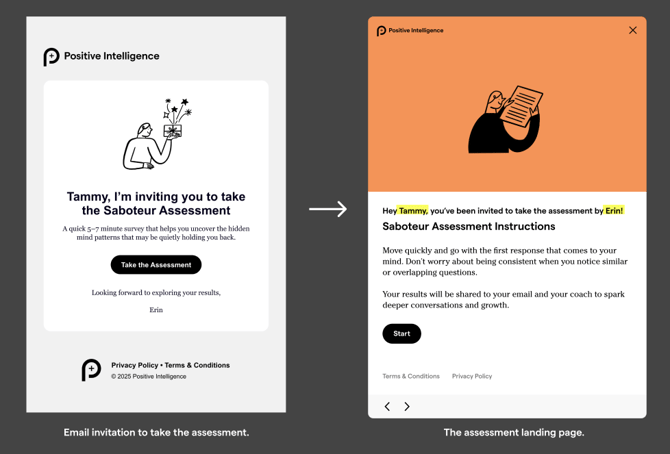
When they open the invitation:
-
their information is already filled in,
-
the experience is personalized,
-
and the coach’s name appears on the Saboteur Assessment page.
What happens after the lead completes the assessment
Once the lead completes the assessment:
-
the lead receives an email with their results,
-
the results are available inside the PQ app,
-
the coach receives an email notification,
-
and the coach can view the lead’s results directly in the Coach Dashboard.
This automatic results sharing helps coaches follow up quickly without needing to manually request or track results.
If someone already took the Saboteur Assessment on their own in the past, those results do not automatically sync into the Coach Dashboard later.
To share past results with a coach, the client can use the Share Results option and send the link directly.
Optional: Booking a session
If the coach has added a booking link in the Coach Dashboard, the lead may also see a Book a Session button on their results page. This makes it easier to schedule a follow-up conversation right away.
- In your dashboard, select Edit Booking Link.
- Add your scheduling link (e.g., Calendly, Acuity, or your preferred booking tool).
- Once added, your lead will see a “Book a Session” button directly on their Saboteur Assessment results page.
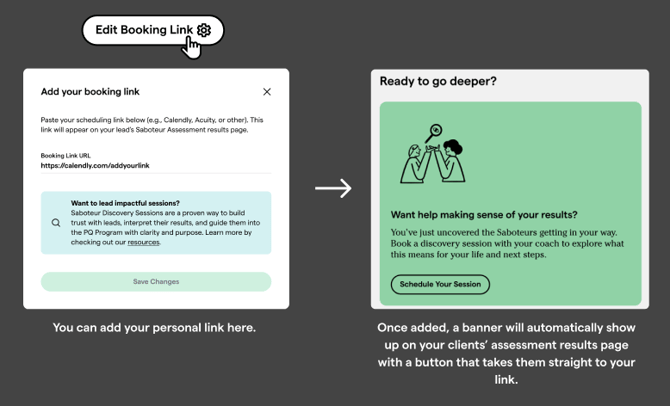
Tip: Don’t have a booking link? You can enter your email address (example: mailto:youremail@coach.com) so your leads can email you directly.
How coaches can track invited leads
In the Coach Dashboard, coaches can track the status of each invited lead in the Leads table.
Lead statuses include:
-
Pending: the invitation was sent, but the assessment has not been completed yet
-
Completed: the lead finished the assessment and results are available
-
Enrolled: the lead has been converted into a client and added to the Clients tab
Coaches can also view summary metrics such as:
-
Total Leads
-
Assessments Pending
-
Assessments Completed
-
Conversions
If a lead has completed the assessment, the coach will see a Show Results button.
If the coach does not see Show Results, the lead has not completed the assessment yet. In that case, coaches can click the ↩️ Resend Invitation icon next to their record, or Select Resend Invitation from the options menu.
Tip: Encourage your lead to check their spam folder if they say they didn’t receive the invitation. The email should be sent by noreply@positiveintelligence.com
How clients sign in again later
Clients can sign back in at any time to access their Saboteur Assessment results.

When they select Sign In, they’ll be asked to enter their email address.
Existing users with a password
If they already have an account with a password, they’ll be prompted to enter it and sign in.
Users without a password
If they previously completed the Saboteur Assessment but have not set a password:
-
they’ll see the message: If this email exists, we will send you sign in details
-
if the email exists, they’ll receive a sign-in link by email
-
after signing in, they may be prompted to create a password
If the email address does not exist in the system, no sign-in email will be sent.
If they haven't created a password yet, Resetting your PQ App Password will not work to view their results or access the PQ app.
How clients share their results
Once clients are signed in and viewing their results, they can scroll down and select Share Results.
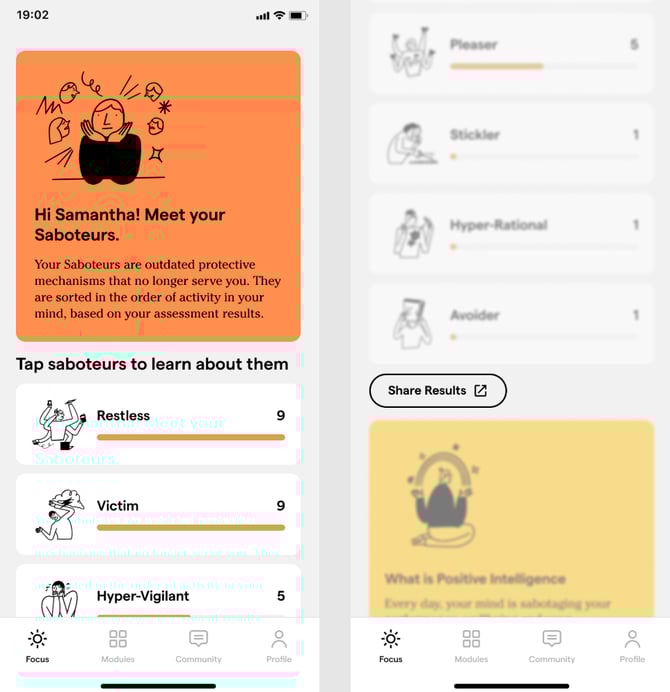
Depending on their device:
-
a native share menu may open, or
-
an in-app sharing window may appear
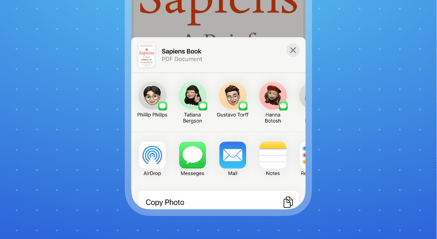
Example of share option for iOS
From there, clients can share their results by:
-
email, or
-
copying a link
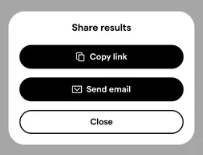
Example of in-app share option
This shared link allows a coach or another recipient to view the client’s Saboteur Assessment results without needing to create an account.
When sharing through the web app, clients will see the sharing options displayed as shown below:
FAQs
Can coaches customize the invitation email?
Not at this time. Invitation emails are sent automatically by the system.
Coaches can still send their own follow-up messages separately to add a more personal touch.
Can leads reply to the system invitation email?
No. System-generated emails are not routed back to the coach.
Will invited leads receive general marketing emails from Positive Intelligence?
No. Leads invited through Coach Dashboard are automatically opted out of general marketing emails from Positive Intelligence.
This helps keep the experience focused and coach-led.
Why didn’t the lead receive the invitation email?
First, confirm the email address was entered correctly. Then ask the lead to check their spam or junk folder.
The invitation email should come from noreply@positiveintelligence.com.
What emails do my leads receive?
When you invite your lead to take the Saboteur Assessment, they will see an email: “[First Name], you’ve been invited to take an assessment!
Your lead also receives:
-
- An email with their results (“Your Saboteur Assessment Results”).
- Their results inside the app, with your name on the page for a personalized experience.
What notifications will the coach receive?
When your lead completes the Saboteur Assessment, you’ll receive an email: “[First Name] has completed the assessment.”
You’ll also see a notification inside your dashboard.